
Creating an Instaspin Casino account involves accessing the registration form and completing the requested personal information. This guide also outlines the initial login process, identity verification, mobile account access and the steps to take if you experience sign-in difficulties.
The platform is operated by Magico Games N.V. under Anjouan licence ALSI-082309007-FI4. Casino games and sports betting are available through the same account, so players can use one set of login credentials for both services.
| Account Function | Access Point | Required Details |
|---|---|---|
| Account Registration | Sign-up page | Name, date of birth, email, country, password |
| Account Login | Login page | Registered email or username, password |
| Mobile Login | Mobile website | Account credentials, supported mobile browser |
| Password Recovery | Forgot Password option | Registered email address, password-reset link |
| Identity Verification | Account verification section | Valid identity document, additional proof if requested |
| Two-Factor Authentication | Security settings | Enabled 2FA method, verification code or confirmation |






Who Can Register and Which Details Are Required to Open an Account

You must be eligible to register and provide your own accurate information. The Netherlands is among our restricted countries, so you cannot register from there. Do not use another person's details or attempt to bypass a location restriction.
Have access to the email address you intend to use and prepare the personal information requested by the form. Enter details consistently with your identity documents; discrepancies can make it harder for us to verify your account later.
Beginning the Instaspin Sign-Up and Completing the Application
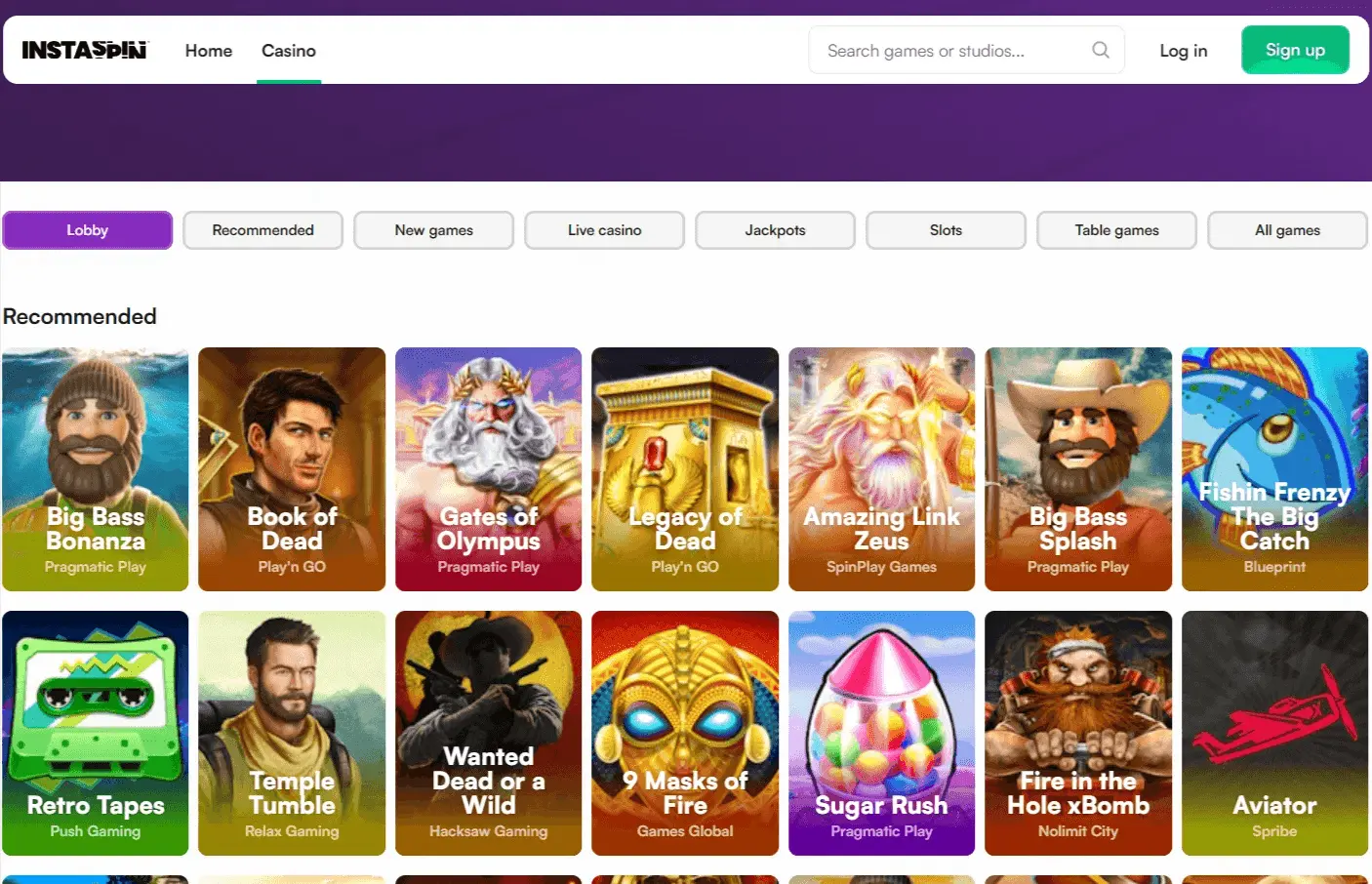
Open our registration form in a browser and work through its fields in order. The separate steps below take you from the form to your first login without requiring a second account for our sportsbook.
Follow these seven steps in order to submit your application, access your new account and review the details that support verification and secure login.
- Step 1 — Open registration — Open our browser interface on your computer or mobile device and select the registration option. Use the same account for our casino and sportsbook rather than starting separate applications for each product.
- Step 2 — Complete the form — Enter your own personal details in the required fields and choose your account credentials. Check the spelling against your identity documents and make sure you can access the email address you provide.
- Step 3 — Confirm contact details — Follow any email or phone confirmation instructions presented during registration. Open the message or enter the requested code in the account flow, and keep that code private rather than sending it to another person.
- Step 4 — Accept and submit — Read the registration conditions presented to you, accept them if you agree and submit your application. Review any error shown on the form and correct the relevant entry before trying again.
- Step 5 — Sign in — Once registration is complete, open our login form and enter the credentials you created. On mobile, use your browser; we do not provide a dedicated app for account access.
- Step 6 — Review your profile — After signing in, compare your profile details with the information you submitted. Correct an available field if needed, or contact us for help when you cannot make the change yourself.
- Step 7 — Check verification and security — Respond to any identity-document request using the route we provide. Review your security settings and, if two-factor authentication is offered, follow the setup instructions while keeping your second verification method private.
Providing Personal Information and Filling in the Required Fields
Enter your own details in the required fields, using the spelling shown on your identity documents. Before submitting, review each entry for typing errors, particularly your email address, because you need access to it for account communications and password recovery.
Setting Up Account Credentials and Accepting the Registration Conditions
Choose a unique password and keep it private. Read the registration conditions presented to you before accepting them; acceptance is your confirmation that you agree to those conditions. Submit the application only after you have reviewed your entries.
Verifying Your Email, Account Details and Player Identity
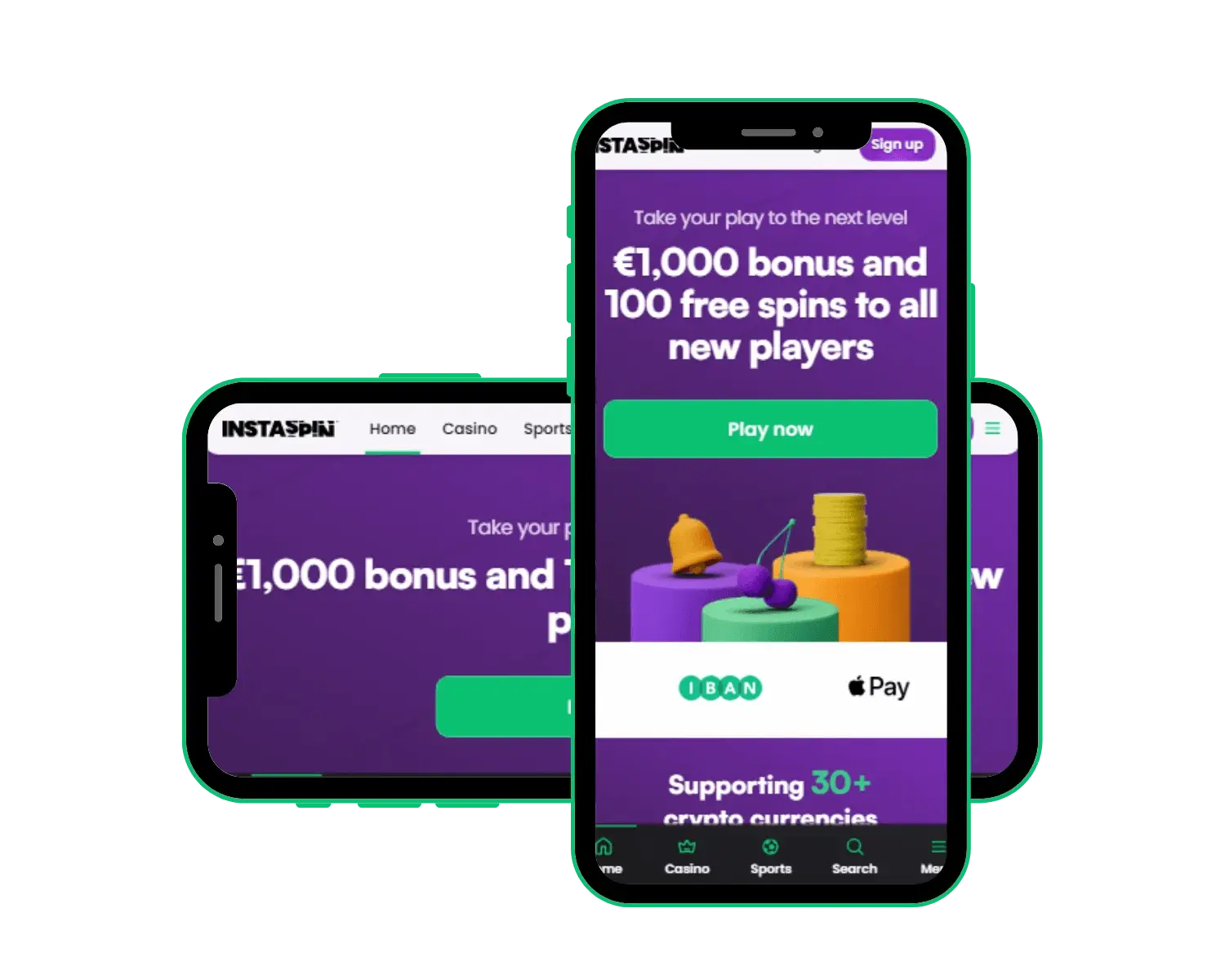
If we send you an email confirmation, open the message and follow its instructions. If a phone confirmation is requested, use the code or other method presented in the form. Enter confirmation information only in the relevant account flow, not in a message to another person.
Identity verification is separate from confirming that you can access an email address. When we request documents, follow the instructions we provide and make sure the information is legible and matches your account. We cannot specify a document list or approval time here.
If a document is rejected, read the reason we provide before sending it again. A clearer image or a correction to mismatched account information may resolve the issue; contact us if you cannot identify what needs to change.
Accessing the Newly Created Account for the First Time
Once your registration is complete, open our login form and enter the credentials you created. If you cannot sign in, check the email and password for typing errors before using the password-reset option. Avoid repeatedly guessing a password.
On a phone or tablet, use your browser to access our mobile interface and sign in with the same account. We do not have a dedicated app. Sign out when you finish on a shared device so the next user cannot access your account.
Configuring Your Player Profile and Personal Account Preferences
After signing in, review the personal details shown in your profile against the information you submitted. Correct an obvious error through the available account controls, or ask us for help if a field cannot be edited. Do not create a replacement account to correct a mistake.
Keep your registered email accessible because it is important for account messages and password recovery. If you need to change it and cannot do so in your profile, contact us from your registered address and explain the change you need.
Keeping Registration Details and Login Access Secure
Protect both your account password and the email account connected to it. If our security settings offer two-factor authentication, follow the setup instructions and keep the second verification method under your control. The security habits below help you avoid preventable lockouts and unauthorised access.
Build these habits into your account routine to protect your credentials, preserve access to recovery messages and reduce the risk of someone else signing in.
- Use a unique password — Choose a password you do not use elsewhere, so a breach of another service does not expose your account.
- Protect your email — Secure your registered email account with its own unique password because access to it can enable password recovery.
- Keep codes private — Do not share confirmation or authentication codes with anyone; enter them only in the relevant account flow.
- Sign out on shared devices — End your session after using a shared phone or computer, preventing the next user from accessing your account.
- Maintain your recovery access — Keep your registered email accessible and ask us for help updating it if you lose access to that address.
Rules on Multiple Accounts, Registration Restrictions and Eligibility
Use your existing account for both our casino and sportsbook rather than opening another account for a different product. If you are unsure whether you already registered, try recovering access or contact us before submitting another application.
Our restricted-country rules include the Netherlands. If you are there, do not attempt to get around the restriction by supplying a different location or someone else's information. Contact us if you need help understanding how a restriction applies to your circumstances.
Addressing Sign-Up Errors and Delays in Account Approval
When a form or login attempt fails, note the exact error and the action that produced it. The fixes below cover common causes without requiring you to disclose your password. For an unresolved issue, email us at e-mail with the relevant details.
If verification is pending, look for a request from us for further information and respond through the route provided. Sending unrelated documents or opening another account will not resolve a missing or mismatched submission.
Use these targeted fixes for common registration and login problems. If an error persists, tell us what happened and which action you were taking.
- Forgotten password — Open our login form, select the password-reset option and follow the instructions sent to your registered email.
- Confirmation message missing — Check your spam folder and confirm that you entered the correct email address; contact us if the message still does not arrive.
- Login details rejected — Check for typing errors and unwanted spaces in your credentials, then reset your password rather than repeatedly guessing it.
- Registration form will not submit — Review the required fields and any error message, correct the identified entry and submit the form again.
- Verification remains pending — Look for a request for further information, respond through the provided route and contact us if you need help with the submission.